 Brightness
 Contrast
 Saturation
 Black and white
 Color picker
 Sketch
 Glitch
 Video to MP3
 Cut video
 Compress video
 MOV to MP4
 Video to JPG
 Add subtitles
 Audio cutter
 Audio converter
 Video volume
 Loop video
 Reverse video
 Audio to video
 Voice recorder
 Cropped photo checker
 Office picture extractor
 Remove EXIF data
 Mic test
 Webcam test
 QR code generator
Free Free every day
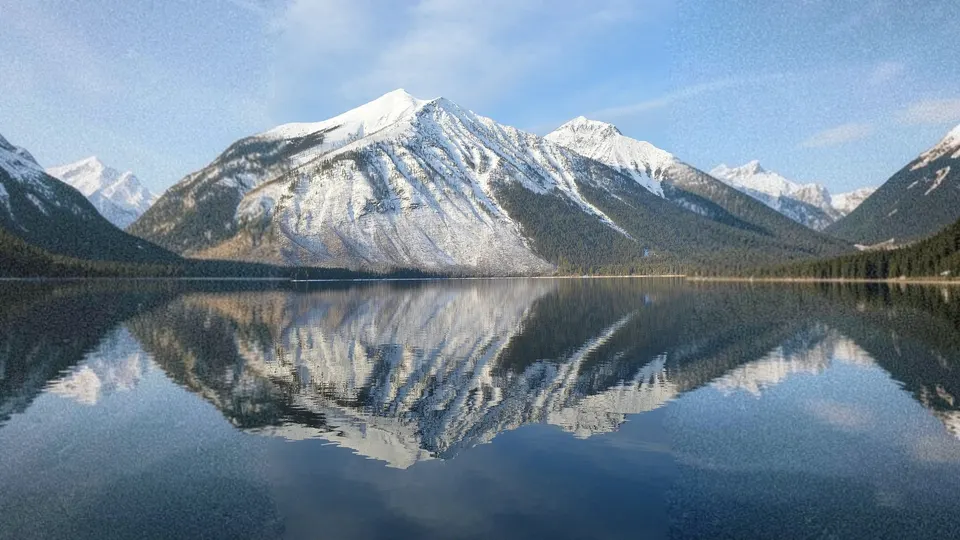
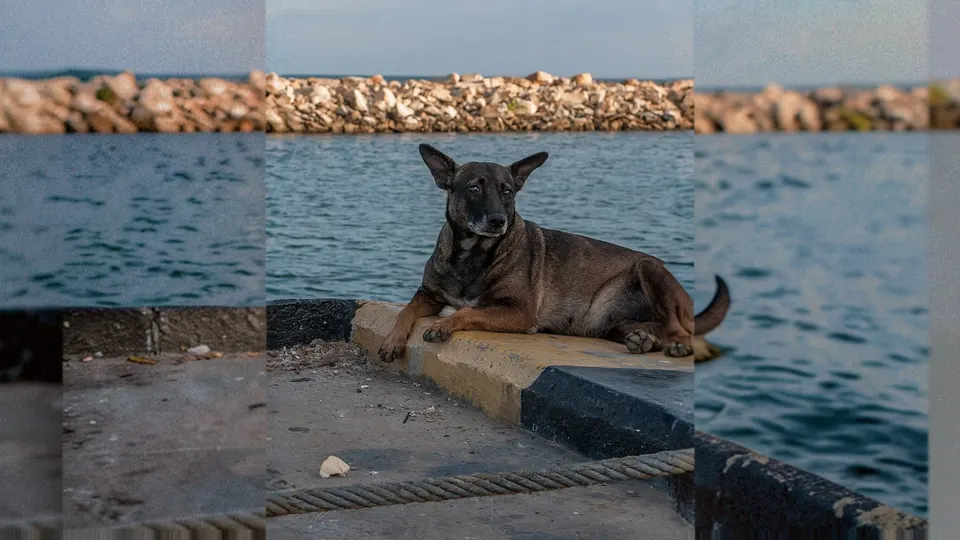
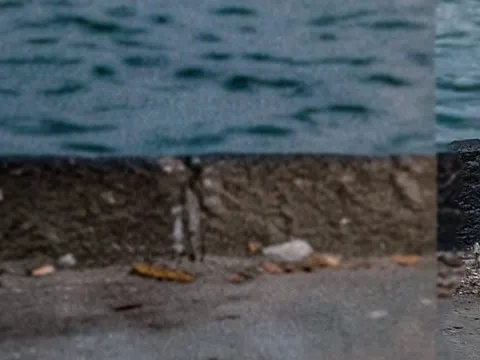
- Our basic AI, open to everyone.
- Does well on simple scenery such as sky, water and hills.
- On a busy photo it can leave joins that show or areas it did not paint, as here, and it has no second run.
 PDF to PNGNewPDF to JPGNew
 Application photo kit
 CompressCompress to KBNewJPG to PDFNew
 ConvertPNG to JPGJPG to PNGPNG to WebPWebP to PNGJPG to WebPWebP to JPGAVIF to JPGAVIF to PNGSVG to PNGNewPNG to ICONew
 WebP to GIFNewHEIC to JPGNewGIF makerNew
 GIF background removerNewGIF compressorNewGIF resizerNewCrop GIFNewAdd text to GIFNewGIF speedNewReverse GIFNewGIF to PNGNew
 Uncrop a photo
 AI image extender
 Change aspect ratio
 Portrait to landscape
 Landscape to portrait
 Instagram no crop
 WhatsApp DP without cropYouTube thumbnail resizerYouTube banner resizerLinkedIn banner resizerFacebook cover photo resizerX (Twitter) header resizerDiscord banner resizerTwitch banner resizerProfile picture maker
 Crop an image online
 Circle crop
 Resize an imagePassport photo maker
 Image splitter
 Combine imagesID card front and back on one page
 Blur faces in photos
 Blur image
 Rotate an image
 Flip an image
 Add text to an image
 Add a frame to a photoAI Christmas photoPhoto restoration
 Colorize photo
 Photo enhancer
 Round image corners
 Remove a simple background
 Signature background remover
 Signature generatorPDF to PNGPDF to JPGApplication photo and signature kitCompress an imageCompress image to KBJPG to PDFConvert image formatPNG to JPG converterJPG to PNG converterPNG to WebP converterWebP to PNG converterJPG to WebP converterWebP to JPG converterAVIF to JPG converterAVIF to PNG converterSVG to PNGPNG to ICOWebP to GIFHEIC to JPG converterGIF makerGIF background removerGIF compressorGIF resizerCrop GIFAdd text to GIFGIF speed changerReverse GIFGIF to PNG
Free AI image extender
Extend a photo with our AI: it paints the new area, so people, animals and rooms carry on past the old edge. Everyone gets free AI uncrop runs every day with no sign-up, and more when you sign in free. Your original pixels stay on top.
Drop a photo to uncrop
or
Resize Your edit carries over and stays on this device. Christmas frameNew Year frame ResizeCompressAdd textConvert Open a photo first, then pick the next step. Your edit carries over and stays on this device. AI uncropping, also called outpainting, puts your photo on a larger canvas and paints the empty area to match. In Photoshop it is called Generative Expand. The AI can only guess from what your photo shows, so it adds believable new scenery, not the part that was cut off.
Want that cut-off part itself? Undo the crop in the app that made it (how to undo a crop in each app), or look for a hidden original inside the file with the cropped photo checker.
Two sample photos, a simple scene and a busy one, extended from portrait to 16:9 at each level. Every picture is one run, shown as the studio finished it, with a close-up of the new area at full size.
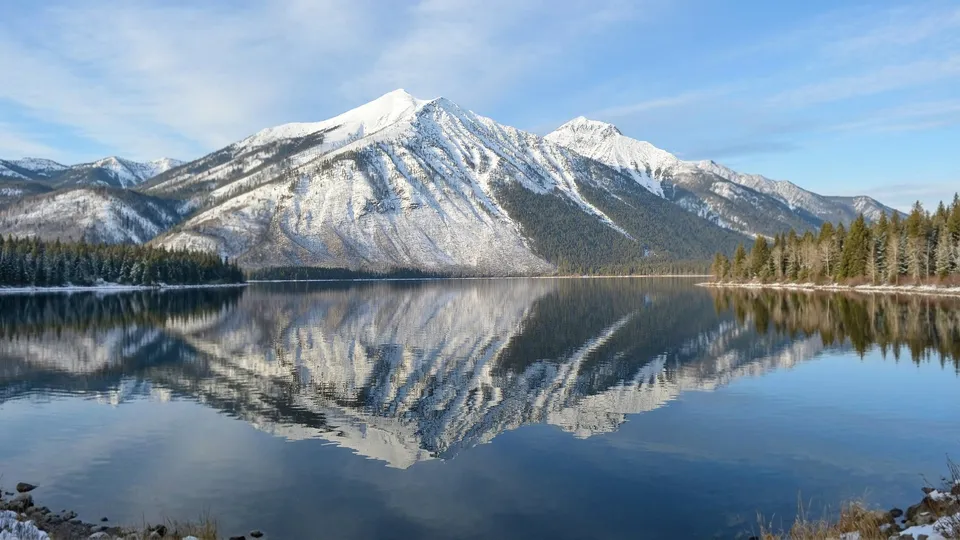
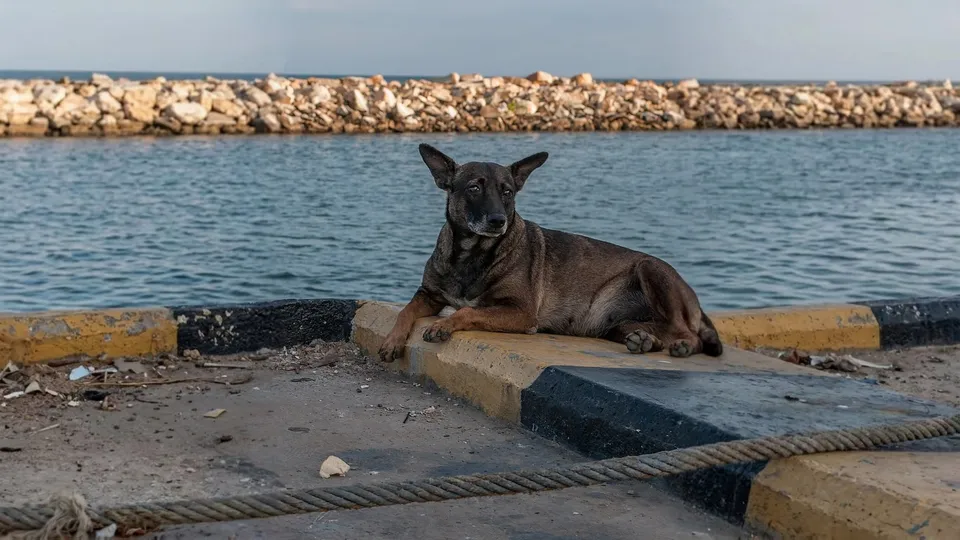
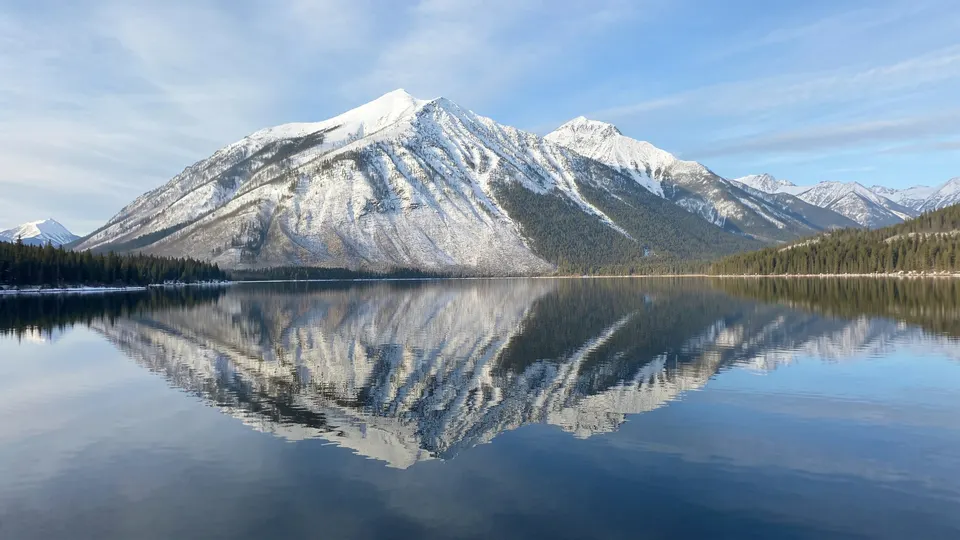
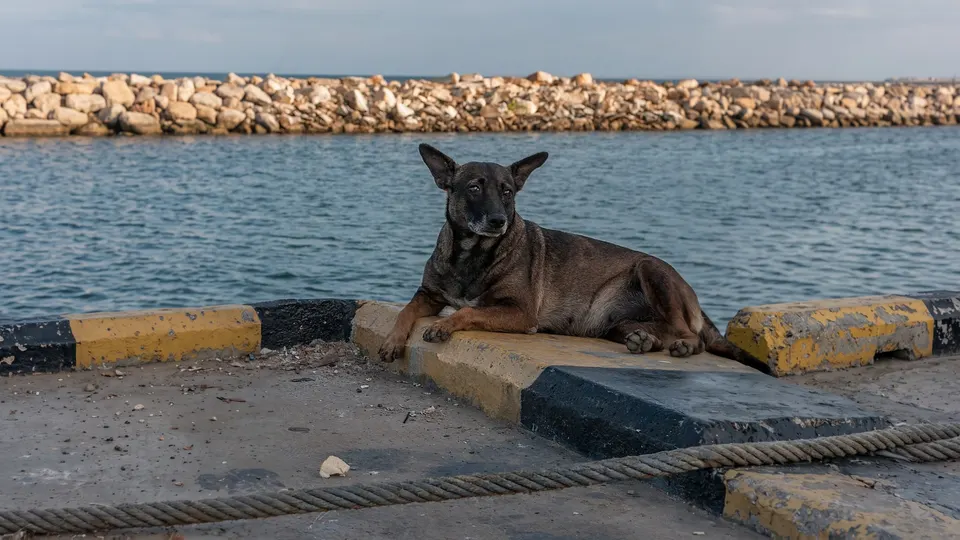
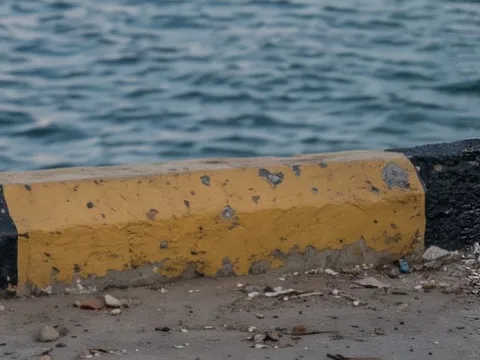
We ran the same three sample photos 10 times at Best (16 November 2026, on the AI it runs now) and 10 times at Max (10 November 2026), and measured every place where the new area meets the photo. Both joined cleanly on all 10 runs at the first attempt. Ten runs on three photos is a small test, so a photo of your own can still show a line or a step at a join. The AI result check tells you when one does. On a paid run or the free try, the studio then runs the AI once more at no charge and keeps the better result, and if a Best result still shows a join, it suggests Max for that photo.
Nothing leaves your device before you press the button. When you do, this is what is sent, and what we keep.
Smaller copies of your photo placed on the new canvas, with the new area in flat gray: on Free a small one for our free AI and a larger one, at most 1,024 pixels on the long side, in case the day's free AI is used up; on Best and Max only the larger one. None holds your photo's location, camera details or file name. They go to uncrop.si, which passes them to one of our AI partners with our own outpainting instructions and a few facts from the photo check, such as black and white or visible grain. On Best and Max, a description you write goes with them, inside our instructions.
Neither your photo nor the AI's picture. We count the run against today's free amount, with a random ID in a cookie and a code made from your network address, and keep the time it took and what it cost, never the image. When you use your free try of Best, we note that your account used it. Our AI partners do not use your photos to train their AI. See privacy.
The AI is asked to paint the empty area so the whole canvas reads as one uncropped photo, taken with the same camera at the same moment: matching perspective, horizon, light, focus and grain. Anyone or anything cut off by the old edge should carry on naturally. It is told to leave your original area as it is and to add no new main subjects, text, logos or frames. On Best and Max, a description you write is passed on as a description of the scene, inside these instructions, not in place of them.
Before each run, the studio looks at your photo on this device. If it finds a black and white photo, one toned in a single color such as sepia, a plain backdrop at an edge being extended, or visible grain, a fixed note is added so the AI matches it. The photo check lists these findings above the fill methods.
AI image models redraw the whole canvas, often a little zoomed or shifted. The studio finds that shift and lines the AI's copy up with your photo, keeps the photo's toning, matches color at the joins, cuts each join where the two agree most, adds back film or sensor grain, and puts your original pixels on top.
Results are most convincing when about a third of the canvas is new. For bigger changes, extend once, then use "Uncrop the result again" for the next step.
AI uncrop shines where something is cut off by the edge: a person, a pet, furniture or a busy street. For sky, sea, grass or a plain wall, the Free level is often enough.
A sharp original photo gives the AI more to work with than a screenshot or a forwarded copy. Trim any black bars or borders first; the photo check offers it.
An AI image extender, also called AI uncrop or outpainting, paints new scenery around a photo so it fills a bigger or differently shaped canvas, with the same light, perspective and texture as the original. Your own pixels stay as they are: only the new area around them is generated.
Yes. Everyone gets free AI uncrop runs every day at the Free level with no account, and more with a free account, while the day's free AI lasts for the whole site. They come back at midnight UTC. A free account also gets one free try of Best, here or on another of our photo AI tools. Blur, Mirror and the other fills are free with no daily limit and no upload. With AI credits, Best uses 5 credits a run and Max 8.
The three levels of AI uncrop. Free runs on our free AI, with free AI uncrop runs every day for everyone. Best runs on a more capable image AI, and it also follows a short description of the photo if you write one. Max runs the same AI at twice the resolution. Every account gets a free try of Best, used only when a picture comes back. After it, Best and Max open once your account has credits from a pack you bought: 5 credits a run on Best and 8 on Max. Welcome credits do not open them.
Nothing is sent until you press Extend with AI. Then your browser sends smaller copies of the photo on the new canvas, without its location, camera details or file name, and on Best or Max your description if you wrote one, to uncrop.si, which passes them to one of our AI partners. The new picture comes back to your browser. We keep none of this, only a count of the run. Every other fill runs on your device and uploads nothing.
The studio checks every AI result where the new area meets your photo. On a paid Best or Max run, and on the free try, when the check finds a join that would show, the studio runs the AI once more at no charge and keeps the better of the two results. If a Best result still shows a join after that, the studio says so and suggests Max for that photo. Max paints the new area at twice the resolution (see the examples). If a run gives no picture at all, its credits come back.
No. The AI repaints the whole canvas, but the studio lines its copy up with your photo, matches color and brightness at the joins and puts your original pixels back on top, so only the new area comes from the AI. The AI result check tells you when a join may show or a part was left unpainted.
Yes. A file saved after AI uncrop carries the IPTC "digital source type" label for a picture that combines a photo with AI-generated parts, in its XMP metadata, and its name ends in ai-uncropped. Our AI image checker reads that label. It is not signed, so anyone can strip it, as with any metadata.
On Free and Best, the AI paints the canvas at 1,024 to about 1,600 pixels on its long side. Max paints it at 2K, about 2,000 to 3,200 pixels on the long side, for example 2752 x 1536 for a 16:9 canvas. The studio scales that to your canvas. On a large photo the new area can look softer than the photo up close, and the result check says so. Max keeps more of the detail, downloading at 50% gives an even match, and extending in two smaller steps also helps.
No. The AI can only guess from what your photo shows, so it adds believable new scenery, not the part that was cut off. To get that back, undo the crop in the app that made it, or look for a hidden original inside the file with the cropped photo checker.
To keep it free, each browser, account and network gets a daily amount, and the whole site has a daily budget for free AI. When either runs out, AI uncrop comes back at midnight UTC. On a busy day the whole site can use up its free AI before your own runs do. Blur, Texture fill and the other fills keep working in the meantime.
Uncrop a photo Extend any photo beyond its edges with blur, mirror or Texture fill, or let our AI paint the new area. Popular Change aspect ratio Make any photo 1:1, 4:5, 9:16 or 16:9 without cropping it. Portrait to landscape Turn a vertical phone photo into a widescreen 16:9 image.  AI image checker An AI image detector that reads the file: Content Credentials, AI labels and SynthID. New
Decision guide
Yes, if the app kept the original. Undo steps for iPhone, Mac, Google Photos, Samsung, Windows, Word and Canva, plus what to try when Revert is missing.
Read the guideAdobe and GIMP guide
Undo a crop in Photoshop with Ctrl+Z, the History panel or Reveal All, even after saving, and what to try when it fails. Lightroom and GIMP steps too.
Read the guideCanva guide
To uncrop an image in Canva, select it, click Crop or double-click it, then drag the handles out. Works anytime in a design, not on a downloaded file.
Read the guide